
Sending one review request proves your setup works from start to finish. Send it to yourself so you can see what your customers will receive.
What you need
- A review link. See Connect Your Google Business Profile.
- An email address you can open
Steps
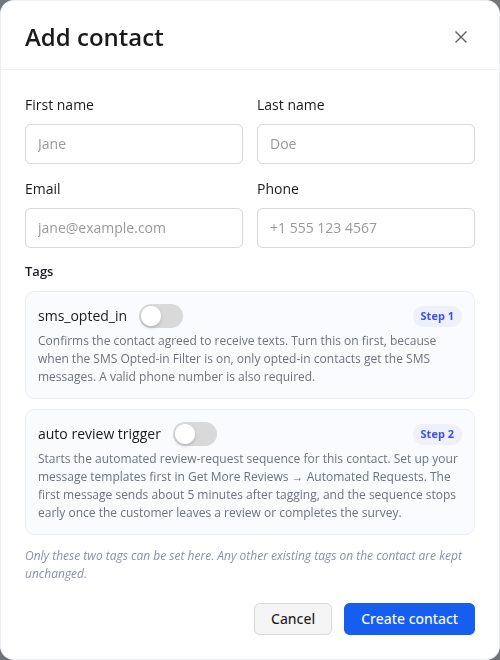
Add a contact
- Open Contacts.
- Click Add Contact.
- Enter a name and your email address.
- Click Create contact.
Send the request
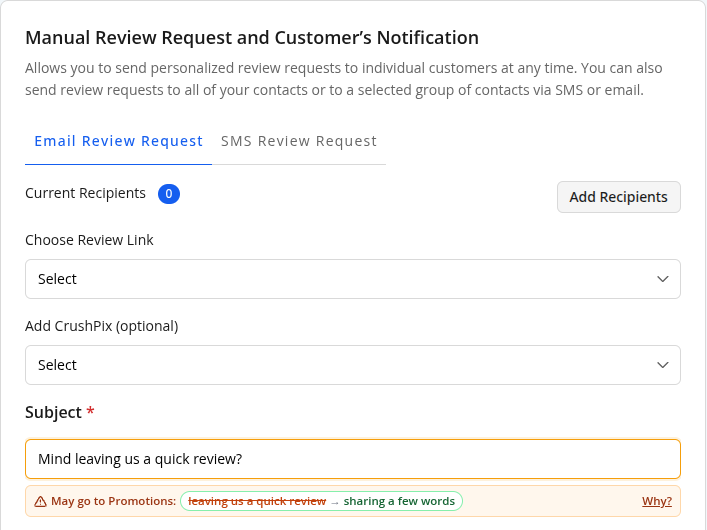
- Go to Get More Reviews, then Manual Requests.
- Open Email Review Request.
- Click Add Recipients and choose your contact.
- Choose your review link.
- Check the subject and message, then send.
Use Email for this test. Texting needs A2P setup, which is part of Phase 2. For more detail, see Send Manual Review Requests.
How to know it is done
- The email arrives in your inbox.
- The link opens your review page.
- The Send your first test review request step shows a tick on your Dashboard checklist.
ReviewCrusher then verifies your setup. There is nothing else for you to do, unless the checklist shows Needs a fix.
Common problems
The email did not arrive
Check your spam folder and confirm the address on the contact is correct, then send again.
The step is not ticked yet
Wait a couple of minutes, then refresh your Dashboard.
Still need help?
See Troubleshooting and Common Questions, or reach us here:
- Ask the Setup Assistant by email
- Text the Setup Assistant at (239) 933-4990
- Book a setup call with our Customer Success team
Back to My Onboarding Checklist
Last reviewed: November 13, 2026. Content owner: ReviewCrusher Customer Success.