
Your review link sends customers to your Google page. Connecting your Google Business Profile tells ReviewCrusher which page to use.
What you need
- The Google account that manages your Business Profile
- Your business name and logo
- Popups allowed for this site in your browser
Steps

- Go to Get More Reviews, then Review Links.
- Click Create New Link.
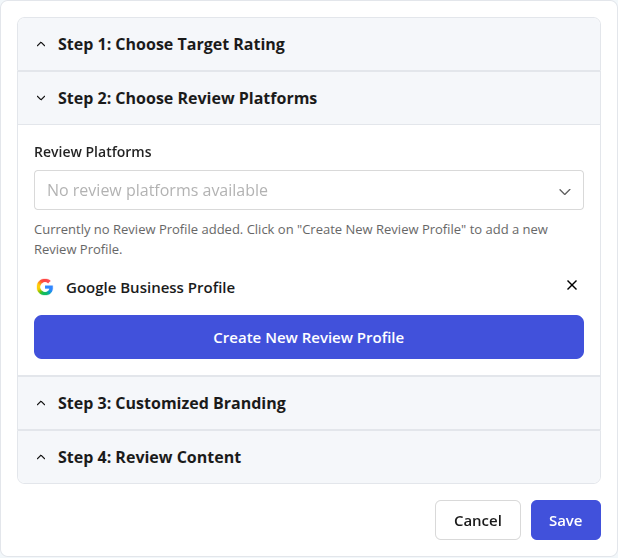
- Open Step 2: Choose Review Platforms and click Create New Review Profile.
- Click Connect Google Business Profile and sign in with the Google account that manages your profile.
- Save the profile, then select it in Review Platforms.
- Add your business name and logo in Step 3.
- Click Save.
For more detail on each screen, see Create a Review Link and Connect Review Platforms.
If you have more than one location
On a multi-location plan with two or more locations, you can add each location's own Google review link. Go to Locations, edit a location and add its Google review link. This step is optional and does not stop your account from going Live.
How to know it is done
The Create your review link step shows a tick on your Dashboard checklist.
Common problems
Nothing happens when I click Connect
Your browser may be blocking the popup. Allow popups for this site and try again.
I signed in with the wrong Google account
Disconnect, then connect again with the account that manages your Business Profile.
The checklist says Reconnect Google
Your Google connection has expired. Connect it again from Review Platforms.
The checklist says Google profile not verified
Google only gives a review link once your Business Profile is verified and published. Verify it in Google Business Profile, then click Open Review Platforms, disconnect Google and connect it again.
The checklist says Connect Google
You already have a review link, but Google is not connected. Click Open Review Platforms and connect your Google Business Profile.
The checklist says Needs a fix
Your review link goes to a different Google profile than the one you connected. Click Open Review Links, update the Google link on your review link, then come back to your Dashboard. We check again when you return.
Still need help?
See Troubleshooting and Common Questions, or reach us here:
- Ask the Setup Assistant by email
- Text the Setup Assistant at (239) 933-4990
- Book a setup call with our Customer Success team
Back to My Onboarding Checklist
Last reviewed: November 13, 2026. Content owner: ReviewCrusher Customer Success.